Four ways to screenshot
The visible part, a dragged region, a delayed shot, or a full-page screenshot of the whole scrolling page.
A free screenshot and screen recorder Chrome extension. Grab a region, the visible area, or the full page and annotate — or record any tab, the desktop, or your camera.
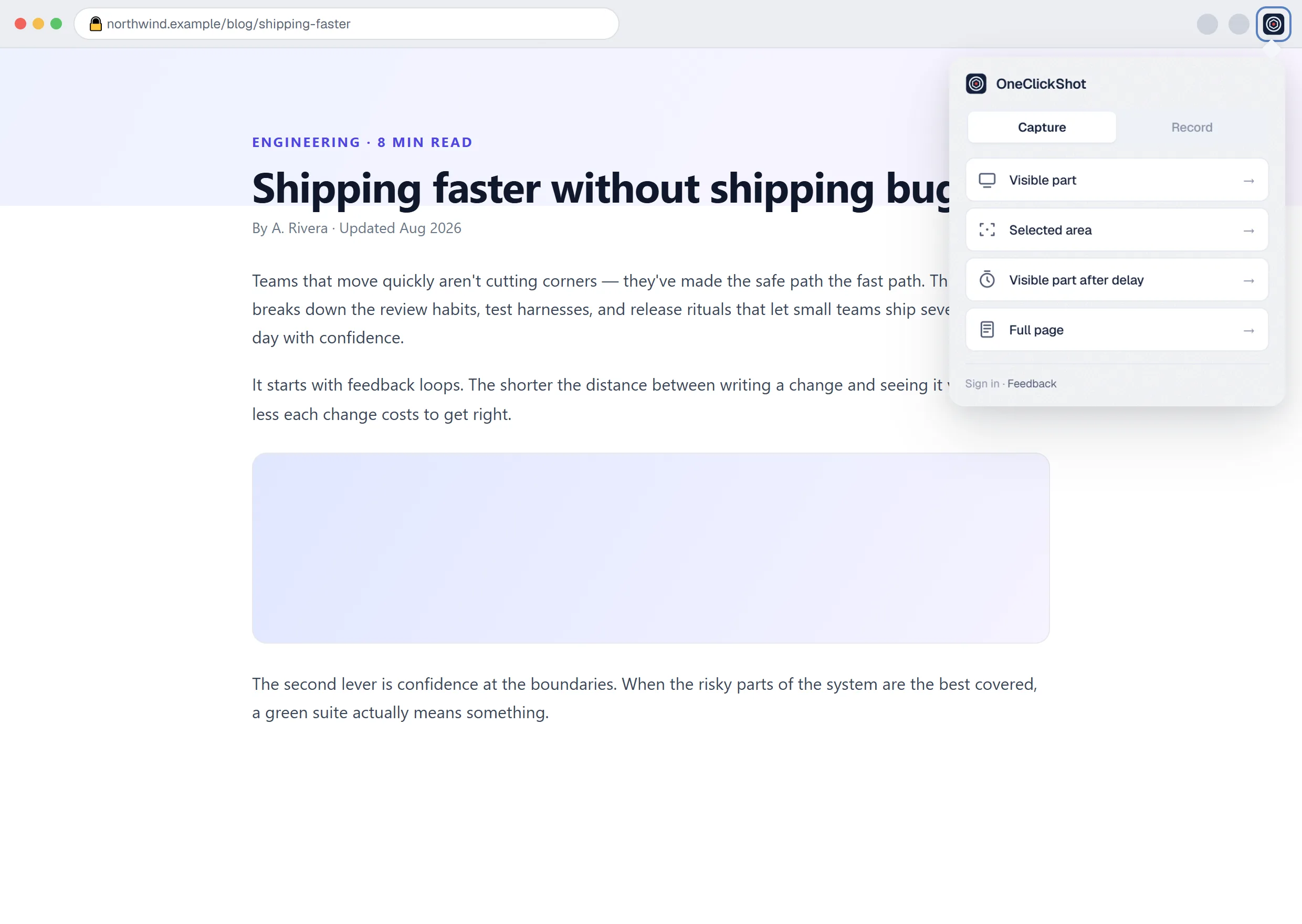
The visible part, a dragged region, a delayed shot, or a full-page screenshot of the whole scrolling page.
In one click, with your microphone and system sound — saved as MP4.
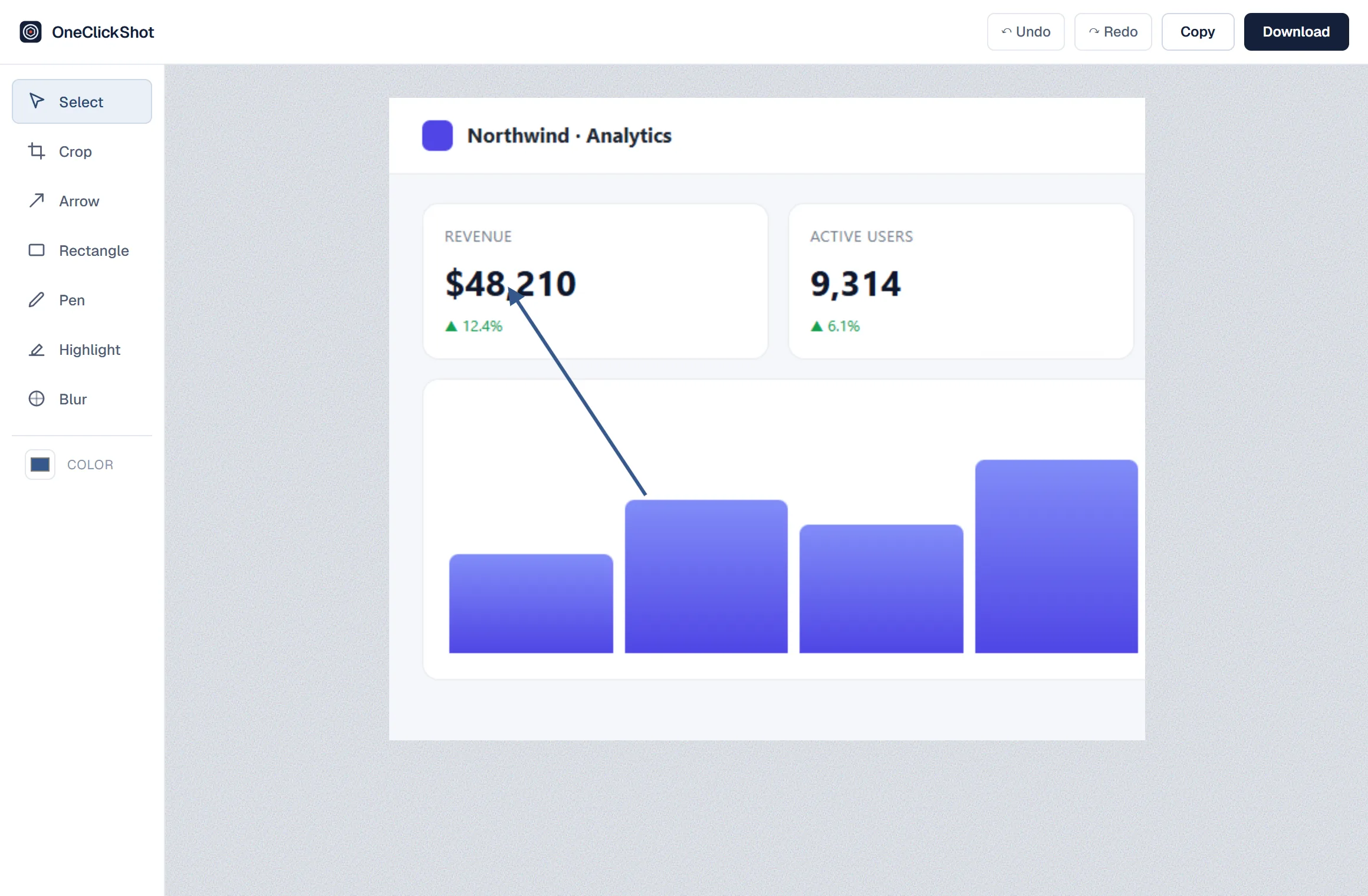
Arrow, rectangle, pen, highlight, and crop — plus blur for the parts that should stay private.
Paste straight into chat, or save a PNG.
Drag a box and OneClickShot crops to the device pixels, not a blurry approximation.
The editor opens the moment you capture. Point with an arrow, box a detail, scribble with the pen, highlight a line, or blur anything sensitive. Crop to re-frame, then copy or download.
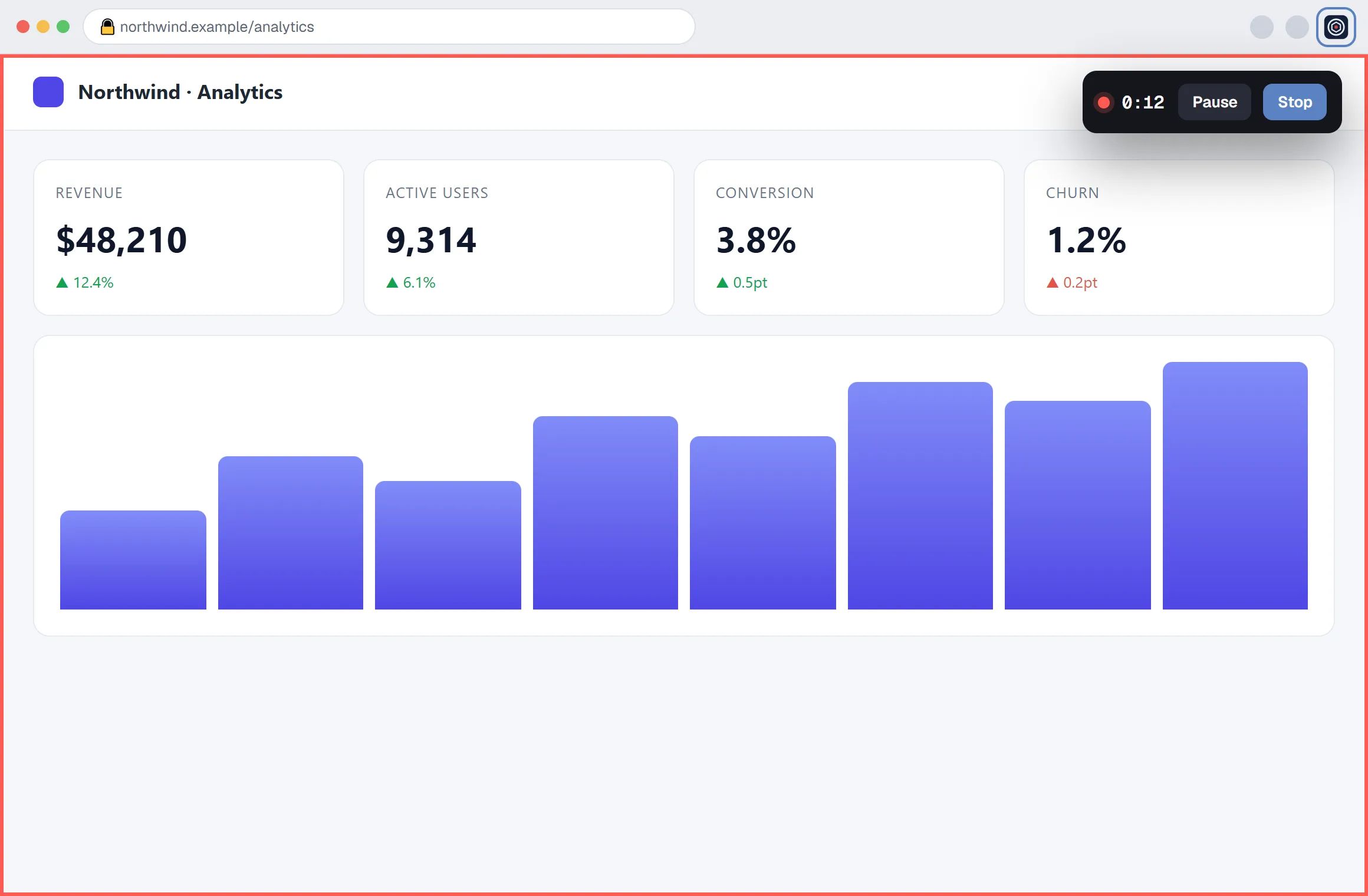
Start in one click. Capture system sound and your microphone together, pause and resume mid-take, and pin floating controls on top so the toolbar never blocks the shot.
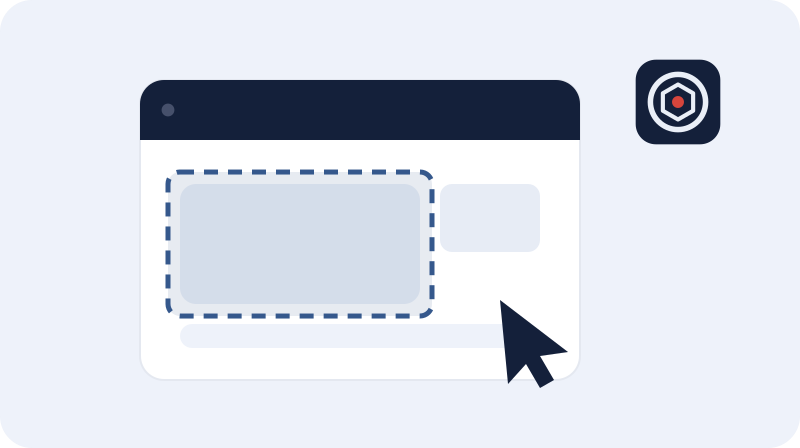 Capture
Click the toolbar icon, pick a mode, or press Alt+Shift+V for the visible part.
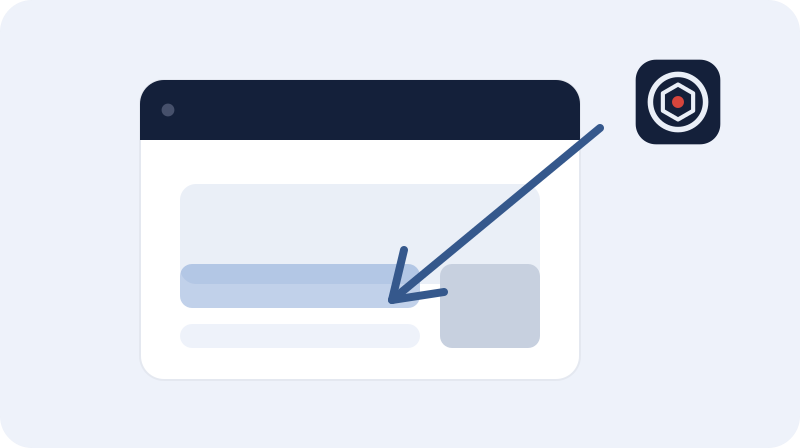 Annotate
The editor opens. Add arrows, highlights, or a blur, and crop to taste.
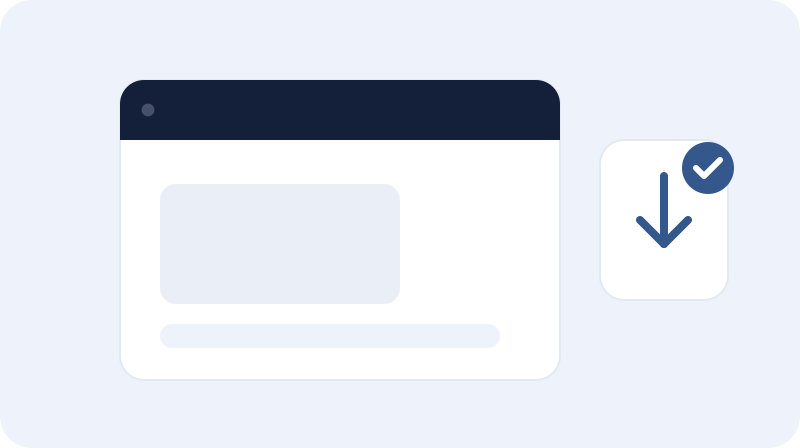 Share
Share
Copy to the clipboard or download. Recordings save straight to your machine.
Four screenshot modes: the visible part, a dragged region, a delayed shot, or a full-page screenshot of the whole scrolling page.
The desktop, a single tab in one click, your camera, or a custom region you drag on the page — with mic and system or tab audio, saved as MP4 (WebM as a fallback).
Yes. Add arrows, rectangles, pen, and highlights, blur anything sensitive, and crop to re-frame — with undo and redo across every edit.
Pause, resume, and stop from the popup, a floating always-on-top mini-bar, a desktop notification, or a keyboard shortcut.
On normal web pages, yes. Chrome blocks capture on its own internal pages, like chrome:// and the Web Store.
Onto your device. Screenshots download as PNG, recordings as MP4 or WebM. Nothing is uploaded.
No. Install it and start capturing. There is no sign-in and no cloud.
Yes. Alt+Shift+V grabs the visible part, Alt+Shift+S stops a recording, and Alt+Shift+P pauses or resumes.
Nothing. OneClickShot is free to install and use.
Free, no account, no upload. Capturing in seconds.
Add to Chrome